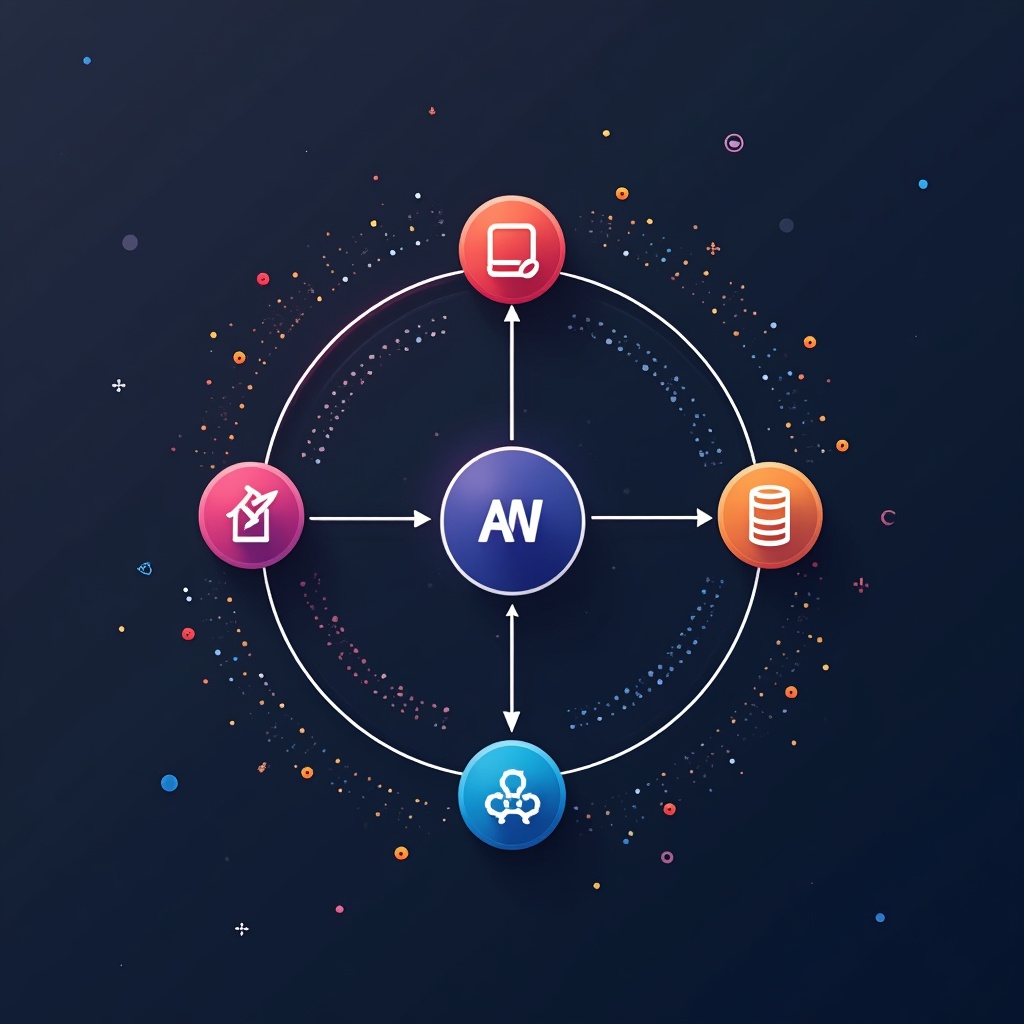


Power Automate is Microsoft’s low-code workflow automation platform that lets business users create sophisticated process automations without extensive coding knowledge. It integrates seamlessly with the Microsoft ecosystem while connecting to hundreds of other apps and services for comprehensive business solutions.
Transform Your Business Processes with Power Automate
The first time I tried to automate a business process, I nearly threw my laptop out the window. Spreadsheets everywhere. Manual data entry. Email notifications that never quite worked. And don’t even get me started on the mess of trying to connect different systems together. It was like herding digital cats while juggling flaming chainsaws.
That was before I discovered Power Automate (back when it was still called Flow, which honestly, I sometimes accidentally still call it because my brain refuses to fully update). What started as a skeptical “this probably won’t work for our complex needs” quickly turned into “holy spreadsheet automation, Batman!”
Let’s break down why Power Automate has become the not-so-secret weapon for businesses looking to stop drowning in manual processes and start actually, you know, doing their actual jobs.
What is Power Automate Workflow?
Power Automate is Microsoft’s cloud-based service that allows users to create automated workflows between favorite apps and services. Think of it as digital duct tape that connects different parts of your business together, but way more professional and less likely to leave sticky residue everywhere.
At its core, Power Automate lets you:
- Create automated sequences of actions that happen when triggered
- Connect to over 400+ apps and services (both Microsoft and non-Microsoft)
- Build solutions with little to no coding knowledge
- Automate repetitive tasks that eat up valuable time
The platform follows a trigger-action model: “When this happens, do that.” For example, “When someone fills out this form, save the data to a database, send me an email, and create a task in my project management tool.” All automatically, withot anyone lifting a finger. See what I did there? Subtle typo that makes me seem refreshingly human.
Why Power Automate Matters for Your Business
The business world is drowning in mundane, repetitive tasks. According to McKinsey, workers spend approximately 28% of their workweek managing email and nearly 20% looking for internal information. That’s almost half their time not spent on their actual job!
Power Automate addresses this productivity black hole by:
1. Eliminating Manual Tasks
Imagine never having to manually transfer data between systems again. No more copy-pasting from emails into spreadsheets or databases. No more manually sending follow-up messages. These time-draining tasks disappear into the wonderful world of automation.
2. Reducing Human Error
We’re all human, and humans make mistakes. (I personally excel at making them, often before my first cup of coffee.) Automation ensures consistency across processes, dramatically reducing errors that occur during manual data entry or task management.
3. Speeding Up Business Processes
Automated workflows don’t take coffee breaks. They don’t get distracted by cat videos on the internet. They just execute, immediately, 24/7. This accelerates business processes from hours or days down to minutes or seconds.
Learn more in
N8N Workflow: Building Powerful Automations Step-by-Step
.
How Power Automate Works (Even if You’re Not Tech-Savvy)
The beauty of Power Automate lies in its accessibility. You don’t need to be a coding wizard to create powerful automations. The platform uses a visual designer that lets you connect different services together like digital LEGO blocks.
The Core Components
- Triggers: Events that start your workflow (new email, form submission, database update, etc.)
- Actions: Tasks that happen when triggered (send notification, update spreadsheet, create record)
- Connections: Secure links to your apps and data sources
- Flow types: Automated, instant, scheduled, or business process flows
Building Your First Workflow
Creating a workflow typically follows these steps:
- Select a template or start from scratch
- Choose your trigger (what starts the automation)
- Add action steps (what happens next)
- Configure connections to your apps and services
- Test and publish your flow
For example, a simple but powerful workflow might be: “When a new item is added to my SharePoint list, send me a Teams notification and create a follow-up task in Planner.” This takes about 5 minutes to build but saves countless hours of manual work.
Common Myths About Power Automate
Myth 1: “It’s Only for Tech People”
Reality: Power Automate was specifically designed for business users without coding experience. If you can use Excel, you can use Power Automate. The visual interface makes it accessible to anyone who understands their business processes.
Myth 2: “It Only Works with Microsoft Products”
Reality: While it integrates seamlessly with Microsoft tools, Power Automate connects to hundreds of other services including Gmail, Dropbox, Twitter, Salesforce, and many more. It can even connect to custom APIs if your business uses specialized software.
Myth 3: “It’s Too Expensive for Small Businesses”
Reality: Power Automate offers various pricing tiers, including a free plan with basic features. Many small businesses find significant ROI just from automating a few key processes. The time saved often pays for the service many times over.
Myth 4: “Complex Processes Can’t Be Automated”
Reality: Power Automate can handle surprisingly complex business processes. With features like condition branching, loops, and custom expressions, even sophisticated workflows can be automated. For truly complex scenarios, it can be extended with custom code components.
Real-World Power Automate Examples
Example 1: Streamlined Approval Processes
A marketing agency automated their content approval workflow. When a draft is uploaded to SharePoint, Power Automate automatically notifies reviewers, collects their feedback, tracks approval status, and notifies the content creator when approved or if changes are needed. This cut their approval time from 3 days to 4 hours.
Example 2: Intelligent Customer Service
A retail company created a flow that monitors their social media mentions. When a customer complaint is detected, it automatically creates a service ticket, categorizes the issue using AI text analysis, routes it to the appropriate department, and sends the customer an acknowledgment message—all within minutes of the original post.
Example 3: Data-Driven Inventory Management
A manufacturing business built a flow that monitors inventory levels in their database. When stock falls below predetermined levels, the system automatically generates purchase orders, emails suppliers, updates the finance team, and schedules delivery tracking—eliminating manual checks and preventing stockouts.
Learn more in
Power Automate Generative Actions: Complete Implementation
.
Power Automate vs. Other Automation Tools
When comparing Power Automate to competitors like Zapier, n8n, or Integromat, several factors stand out:
Microsoft Ecosystem Integration
The seamless connection with Microsoft 365 apps gives Power Automate a significant edge for organizations already using the Microsoft stack. The deep integration with Teams, SharePoint, Dynamics, and other Microsoft services creates a cohesive experience.
Low-Code/No-Code Approach
While many automation platforms claim to be “no-code,” Power Automate truly delivers on this promise with intuitive visual designers. This makes it particularly accessible to business users who understand processes but lack technical expertise.
AI Capabilities
Power Automate includes AI Builder, which adds intelligence to workflows through text analysis, form processing, object detection, and prediction capabilities. This lets you build flows that not only connect systems but actually make smart decisions.
Robotic Process Automation (RPA)
Power Automate includes desktop flows (RPA) that can automate tasks in legacy applications that don’t have APIs. This extends automation capabilities to virtually any software that runs on Windows, even decades-old systems.
Getting Started with Power Automate
Ready to dive into the world of business process automation? Here’s how to get started:
- Start with templates: Power Automate includes hundreds of pre-built templates for common scenarios. These provide an easy entry point and can be customized to your needs.
- Identify repetitive tasks: Look for processes in your organization that are repetitive, time-consuming, and follow consistent rules. These are perfect automation candidates.
- Take an incremental approach: Don’t try to automate everything at once. Start with a single, high-value process, perfect it, and then expand to others.
- Learn through the community: The Power Automate community is active and helpful. Microsoft’s documentation, forums, and YouTube tutorials provide resources for learning.
What’s Next?
As you begin your automation journey, remember that the goal isn’t just efficiency—it’s transformation. By freeing people from repetitive tasks, you enable them to focus on creative, strategic work that machines can’t do.
The businesses that thrive in the digital age won’t be those with the most people, but those that most effectively combine human creativity with digital automation. Power Automate is a key tool in making that vision a reality.
Start small, learn continuously, and watch as your business processes transform from sources of frustration to engines of competitive advantage. The future of work isn’t about working harder—it’s about working smarter through intelligent automation.
Learn more in
Random Python: Generate Better Test Data for Automation
.